
When you sign into your FleetGO account - a process we call "authentication" - you're proving to the service that you are who you say you are. Traditionally that's been done with a username and a password. Unfortunately, that's not a very good way to do it. Usernames are often easy to discover; sometimes they're just your email address. Since passwords can be hard to remember, people tend to pick simple ones, or use the same password at many different sites.
How does Multi-factor authentication work?
Let's say you're going to sign into your FleetGO account, and you enter your username and password. If that's all you need then anybody who knows your username and password can sign in as you from anywhere in the world!
But if you have multifactor authentication enabled, things get more interesting. The first time you sign in on a device or app you enter your username and password as usual, then you get prompted to enter your second factor to verify your identity.
This second factor is a so called Authenticator app. There are different apps you can download. The most common app's are:
1. Google Authenticator
2. Microsoft Authenticator
3. 2FAS
You open the app on your smartphone, it shows you a unique, dynamically created 6-digit number that you type into FleetGO and you're in.
If somebody else tries to sign in as you, however, they'll enter your username and password, and when they get prompted for that second factor they're stuck! Unless they have YOUR smartphone, they have no way of getting that 6-digit number to enter. And the 6-digit number in Microsoft Authenticator changes every 30 seconds, so even if they knew the number you used to sign in yesterday, they're still locked out.
How to set-up MFA in FleetGO
FleetGO has the option to activate MFA per user or you can activate it for all your users at once.
Activate per user
This must be done by a admin and it takes just a few clicks. Log-in to FleetGO, navigate to Management, Common, Users and open the User for who you want to activate MFA. Click on Edit and check the box at Multi-factor authentication. After saving a confirmation will be shown that the user will need to set-up MFA at the next Log-in.
Activate for all users
This must be done by a admin as well. Log-in to FleetGO, click on your username and select settings. Navigate to the Security tab and select the checkbox. Now all users that will log-in the next time they use FleetGO, they need to set-up MFA.
When the User will log-in, he needs to scan the QR code via the Authenticator App on his mobile phone.
When this is done successfully, the Authenticator app will generate a code to Log-in to FleetGO. Please note that at the first time (see video) you will see a screen with restore codes (in case you lose your phone;)). Please make sure you copy them and put them in a file only you know were to find.
How it looks in the app (Google Authenticator)
Comments
2 comments
Hi, Ron de Vries can this article also come available in the dutch help center? For some reason, I dont have the rights to set this one in Dutch
@...
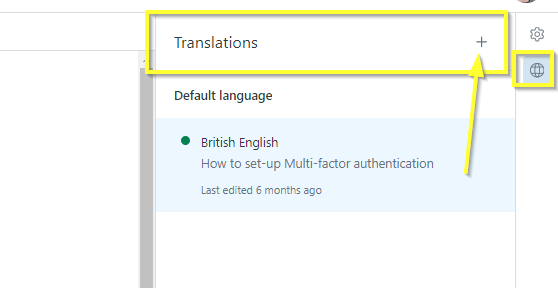
You should have the option to add another language to this article. Can you check? The UI has changed for article translation this week so maybe you're still trying to accomplish it using the old method
Please sign in to leave a comment.